Using Cronto Visual Cryptogram for transaction signing in e-banking involves a sophisticated method of enhancing security during financial transactions. |
Here's a detailed exploration of how Cronto Visual Cryptograms are utilized in e-banking for transaction signing, covering its principles, implementation, advantages, and considerations. |
|
Introduction to Cronto Visual Cryptogram |
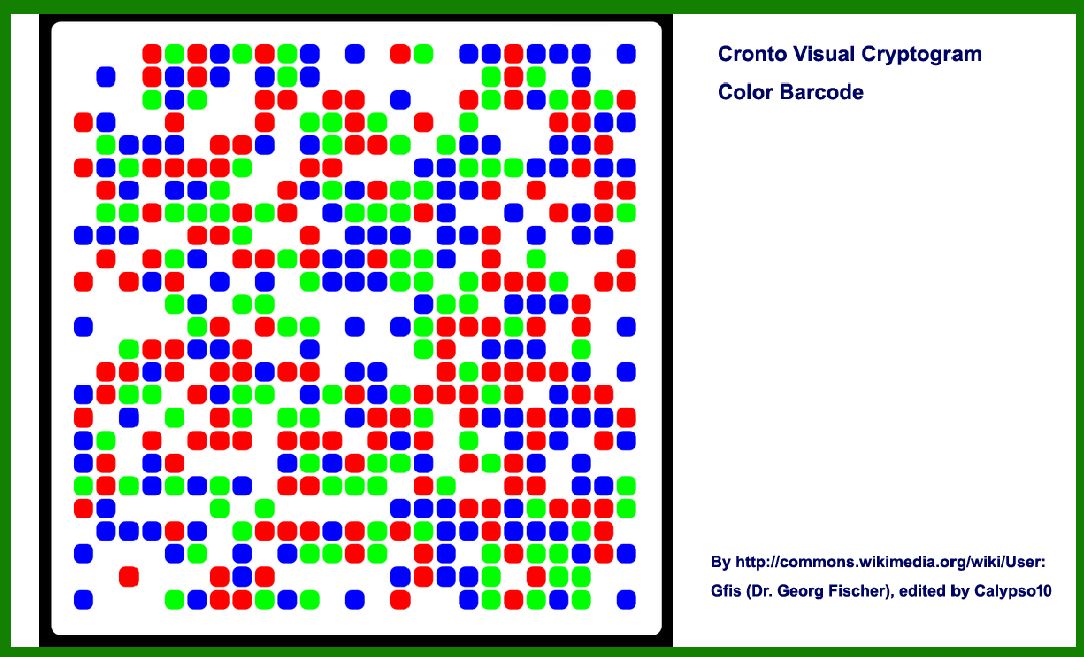
Cronto Visual Cryptogram is a technology developed by Cronto Ltd., primarily used for secure transaction authorization in e-banking. It leverages visual cryptography to create a one-time password (OTP) displayed as a graphical pattern (typically a grid of dots or shapes) that a user can scan with their mobile device. This OTP is then used to authenticate and authorize transactions securely. |

|
Principles of Visual Cryptography |
Visual cryptography is a cryptographic technique where secret information (in this case, the OTP) is encoded into multiple shares or layers of visual data. Each share individually reveals no information about the original secret, but when combined or processed correctly, the secret can be decrypted or authenticated. |
The key principles of visual cryptography relevant to Cronto Visual Cryptogram include: |
1.Sharing Secrets: Information (OTP) is split into multiple shares (parts of the visual cryptogram). 2.Visual Representation: Each share is represented as a visual element (dots, shapes) that collectively form the complete cryptogram. 3.Secure Transmission: The visual cryptogram is designed to be transmitted securely and scanned by the user's device. |

|
Implementation of Cronto Visual Cryptogram in E-Banking |
Workflow Overview |
1.Initiation of Transaction: When a user initiates a transaction through their e-banking platform (web or mobile app), they are prompted to authorize it using a Cronto Visual Cryptogram. 2.Generation of Cryptogram: The e-banking platform generates a unique visual cryptogram based on the transaction details and user identity. 3.Display and Scanning: The cryptogram is displayed on the user's computer screen. The user scans it using a mobile app installed on their smartphone or a dedicated scanning device. 4.Authentication: The scanned image is decrypted on the user's device to reveal the OTP. 5.Transaction Authorization: The OTP is then used to authenticate and authorize the transaction on the e-banking platform. |
Key Components |
Cryptogram Generator: Part of the e-banking platform responsible for creating unique visual cryptograms for each transaction. Mobile App: Installed on the user's smartphone, it scans and decrypts the visual cryptogram to extract the OTP. Secure Channel: Ensures that the cryptogram transmission between the e-banking platform and the user's device is secure and tamper-proof. |

|
Advantages of Cronto Visual Cryptogram |
Enhanced Security |
OTP Security: Each transaction uses a unique OTP generated from the visual cryptogram, minimizing the risk of replay attacks. End-to-End Encryption: The entire process, from cryptogram generation to OTP decryption, is encrypted, reducing the likelihood of interception. Device Independence: Works across various devices (computers, smartphones) without relying on additional hardware tokens. |
User Experience |
Ease of Use: Scanning a visual cryptogram is intuitive and user-friendly compared to entering complex alphanumeric OTPs. Accessibility: Available on standard smartphones with no need for specialized hardware, making it widely accessible. |
Compliance and Regulation |
Compliance: Meets regulatory standards for secure authentication and transaction authorization in financial services. Auditability: Transactions authenticated via Cronto Visual Cryptogram can be audited for compliance purposes. |

|
Considerations and Challenges |
Security Considerations |
Device Security: Users must ensure their scanning devices (smartphones) are secure to prevent unauthorized access to OTPs. Phishing Risks: Users should verify the authenticity of the visual cryptogram to avoid phishing attacks. Transmission Security: Ensuring the secure transmission of the cryptogram over potentially insecure networks. |
Implementation Challenges |
Integration: E-banking platforms need to integrate Cronto Visual Cryptogram technology seamlessly, which can involve development and testing efforts. User Education: Users may require training to understand how to use and verify visual cryptograms effectively. |
Future Developments and Trends |
Biometric Integration: Future iterations may integrate biometric authentication with visual cryptograms for enhanced security. Blockchain Integration: Exploring blockchain technology to further enhance the security and auditability of transaction authorizations. |

|
Conclusion |
Cronto Visual Cryptogram technology represents a significant advancement in securing e-banking transactions through visual cryptography. By leveraging unique visual patterns that can be securely scanned and decrypted on a user's device, it offers robust security, ease of use, and regulatory compliance. As e-banking continues to evolve, technologies like Cronto Visual Cryptogram are crucial for maintaining trust and security in digital financial transactions. |
 cs@easiersoft.com